How to setup Dynamic runtime configurations in Angular
Hello,
In this post, I'll show you how you can adjust your Angular app's features dynamically at runtime using a config file.
I am using Angular 12 & runtime-config-loader for demo purposes.
Unlike,
environment.ts, these changes persist in production builds and are customizable as seen fit in the future.
Purpose
Show/hide Animal descriptions depending on the config file.
Specify a custom font used for displaying the contents.
Theory
The idea is, we store the config file in src/assets and fetch it on the first init. The retrieved data is stored in a service which is how a component would access them.
Installation
- Install the library into your Angular app.
npm install runtime-config-loader
- Open
app.module.tsand insert the following line intoimportssection:
// app.module.ts
RuntimeConfigLoaderModule.forRoot({
      // update path as needed.
      configUrl: 'assets/config.json'
})
Usage
- Here's the
config.jsonfile used in the demo
// src/assets/config.json
{
  "features": {
    "showDescription": true,
    "fontFamily": "Arial"
  }
}
- Here's what the HTML looks like:
<!-- app.component.html -->
<div class="container py-4">
    <div class="row">

      <h2>Animals</h2>

      <div class="col-4 card m-3" [style.font-family]="fontFamily"
        *ngFor="let item of data">
        <div class="card-body">

          <h2>{{item.text}}</h2>
          <p *ngIf="showDescription">{{item.description}}</p>
        </div>
      </div>
    </div>

  </div>
Component TS code:
import { Component, OnInit } from '@angular/core';
import { RuntimeConfigLoaderService } from 'runtime-config-loader';

@Component({
  selector: 'app-root',
  templateUrl: './app.component.html',
  styleUrls: ['./app.component.css']
})
export class AppComponent implements OnInit {

  constructor(
    private configService: RuntimeConfigLoaderService
  ) { }

  data = [
    { text: "Cat", description: "Cats rule the internet!" },
    { text: "Dog", description: "Dog is a man's best friend" },
  ];

  // default options
  showDescription = false;
  fontFamily = "Monospace";

  ngOnInit(): void {
    const { showDescription, fontFamily } = this.configService.getConfigObjectKey('features');
    this.showDescription = showDescription;
    this.fontFamily = fontFamily;
  }

}
Final Result
showDescription: true
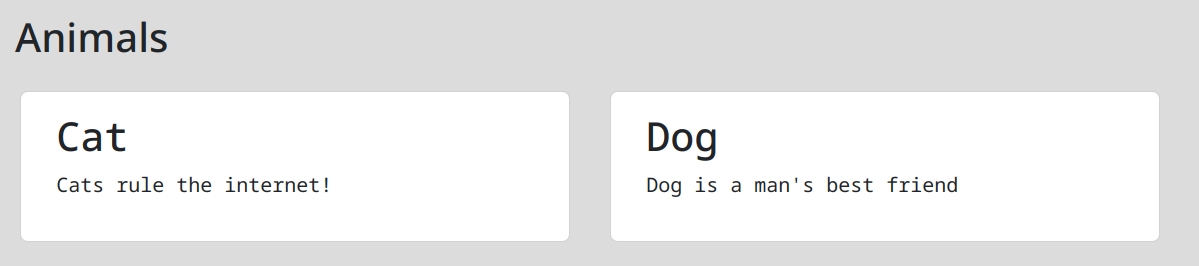
showDescription: false

fontFamily: "Arial"

Conclusion
I hope you learned something here. Give this article a 👍 and add your thoughts below.
You can @ me on Twitter
Bye :)
Comments
Join the discussionNo comments yet. Be the first to comment.